New Blog Updates: Multiple Post Layouts, AI Drafts, and More
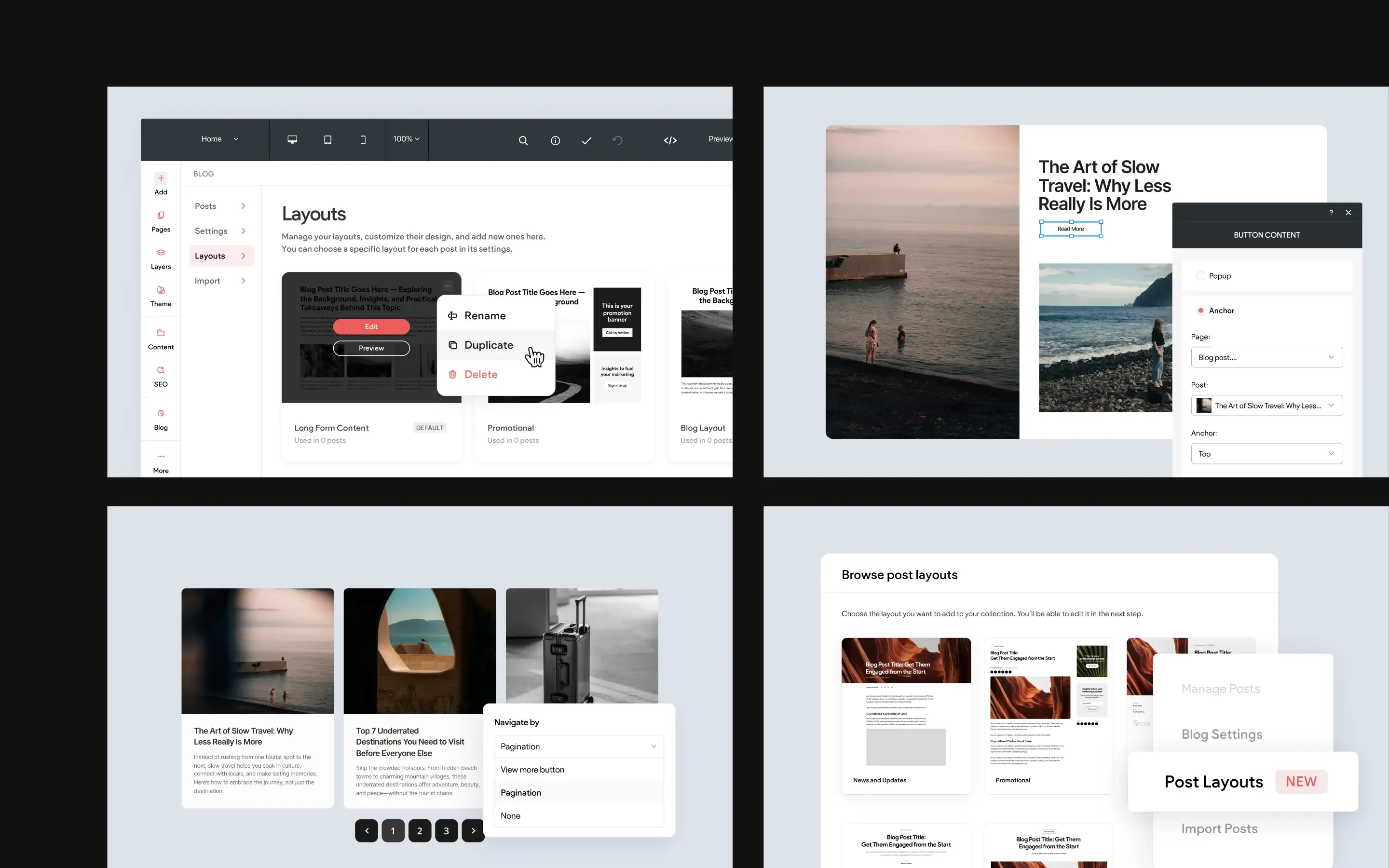
If you use the blog inside the Without Code editor, you’ll notice a few new improvements that make it easier to create different post layouts, experiment with blog designs, and guide readers toward more of your content. These updates give you more flexibility when creating blog posts, along with a few workflow improvements that make managing your blog faster and easier.
Whether you're publishing long-form articles, quick updates, or visual posts, these new options give you more control over how your content is designed and how readers explore what comes next. Let’s take a look at what’s new.
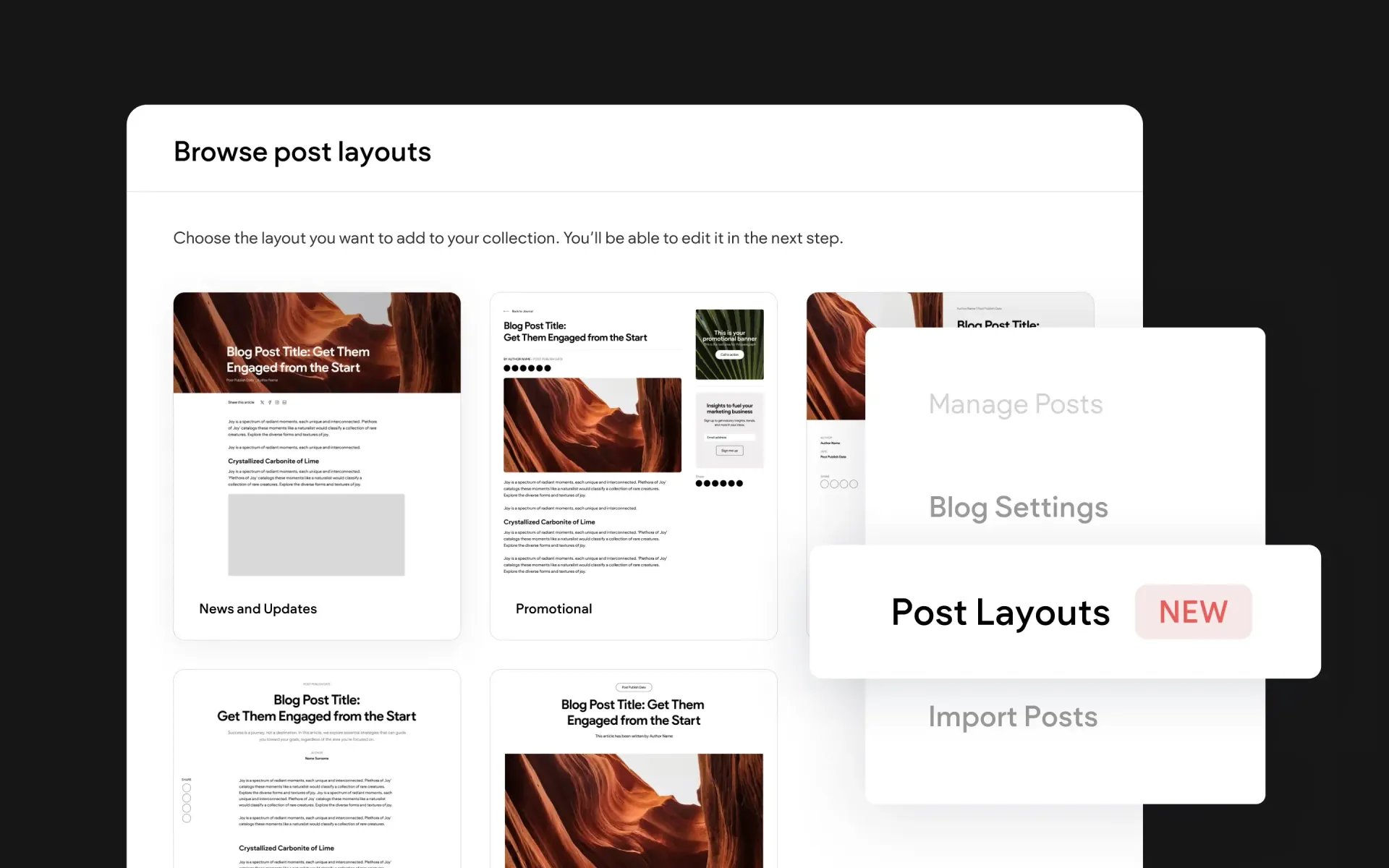
Use Multiple Layouts in the Same Blog
Until now, blog posts within a single blog shared the same layout, which meant every post followed the same structure and design. Now you can create multiple layouts within the same blog and choose which layout each post should use, giving you more control over how different types of content appear.
This makes it easier to design posts around the content they contain. For example, you might create:
- A layout designed for long-form articles
- A layout that highlights images for photo-heavy posts
- A simpler layout for quick updates or announcements
Each layout can be customized just like before, but now you can apply them selectively to different posts. This opens the door to more creative blog designs while keeping everything organized within a single blog.
This feature is available when using Editor 2.0.
To Use:
Open your blog layout settings to create additional post layouts. When editing a post, choose the layout you want to apply from the
Post Layout dropdown.
Draft Blog Posts with AI
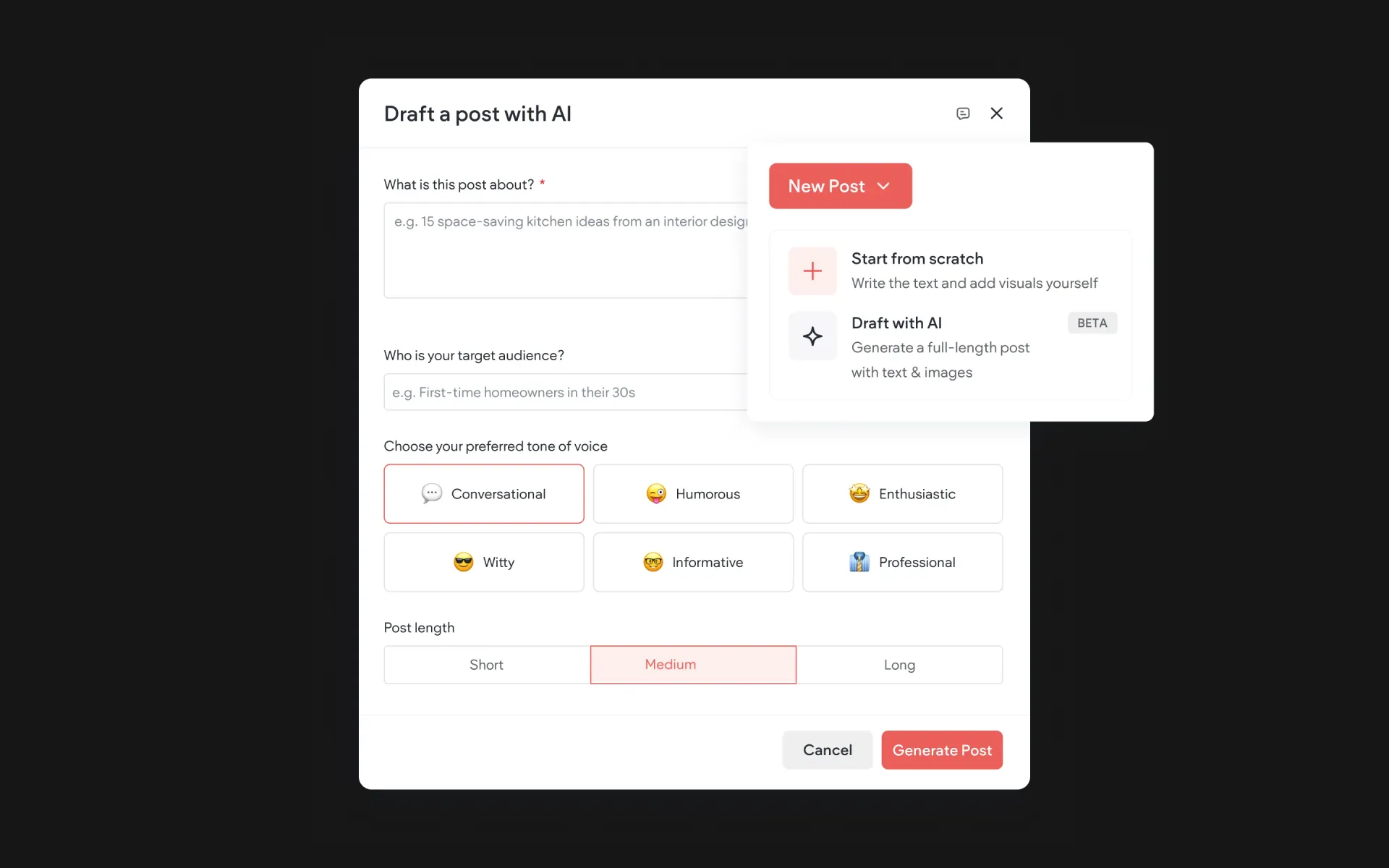
You can now generate an entire blog post in seconds using a new AI-powered draft option. Instead of beginning with an empty editor, you can choose to generate a full draft to help speed up the writing process.
The setup walks you through a few prompts, including your business details, what the post is about, who the content is for, and the tone of voice you want to use. Once those details are entered, the tool creates a complete blog post with structured content, images, and key post details already in place, giving you something you can review and refine before publishing.
This is a useful option for anyone who wants a quicker starting point for blog content, especially when outlining and first-draft writing tend to take the most time.
This feature is available when using Editor 2.0.
To Use:
Create a new blog post and choose
Draft with AI. Fill in the requested details about your business, topic, audience, and tone, then generate the post and make any edits you want before publishing.
Duplicate Blog Layouts in One Click
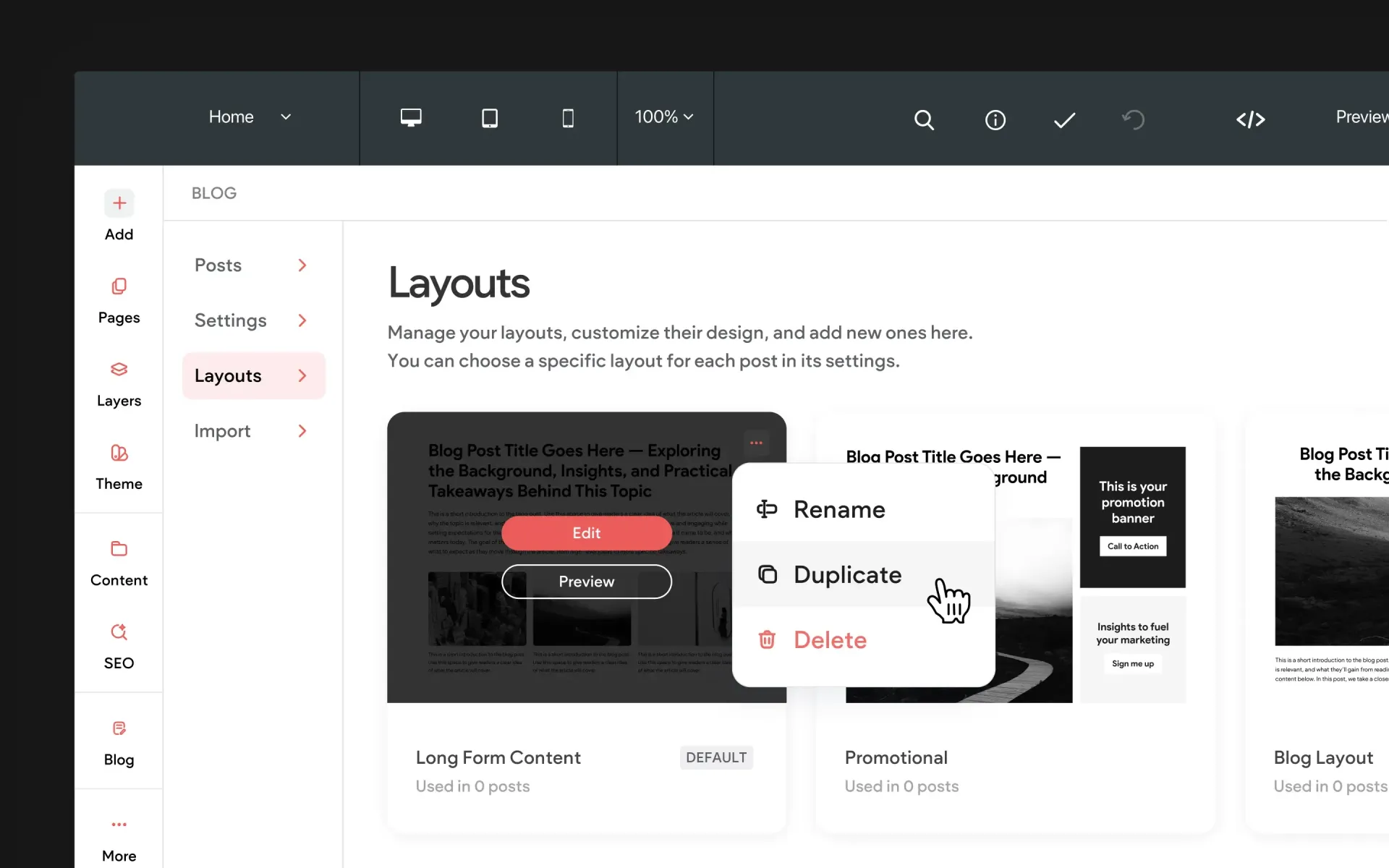
Creating multiple layouts is now even easier thanks to a new duplication option. Instead of building each layout from scratch, you can
duplicate an existing layout with one click and then adjust it to create a variation.
For example, you might duplicate a layout you already like and modify things like:
- Spacing
- Image placement
- Sidebar content
- Typography adjustments
This makes it much faster to experiment with new blog layouts or create variations for different types of posts without starting over.
This feature is available when using Editor 2.0.
To Use:
Open your blog layout settings, hover over an existing layout, and select
Duplicate. You can then modify the copied layout to create a new variation for different types of posts.
More Control Over How You Display Additional Blog Posts
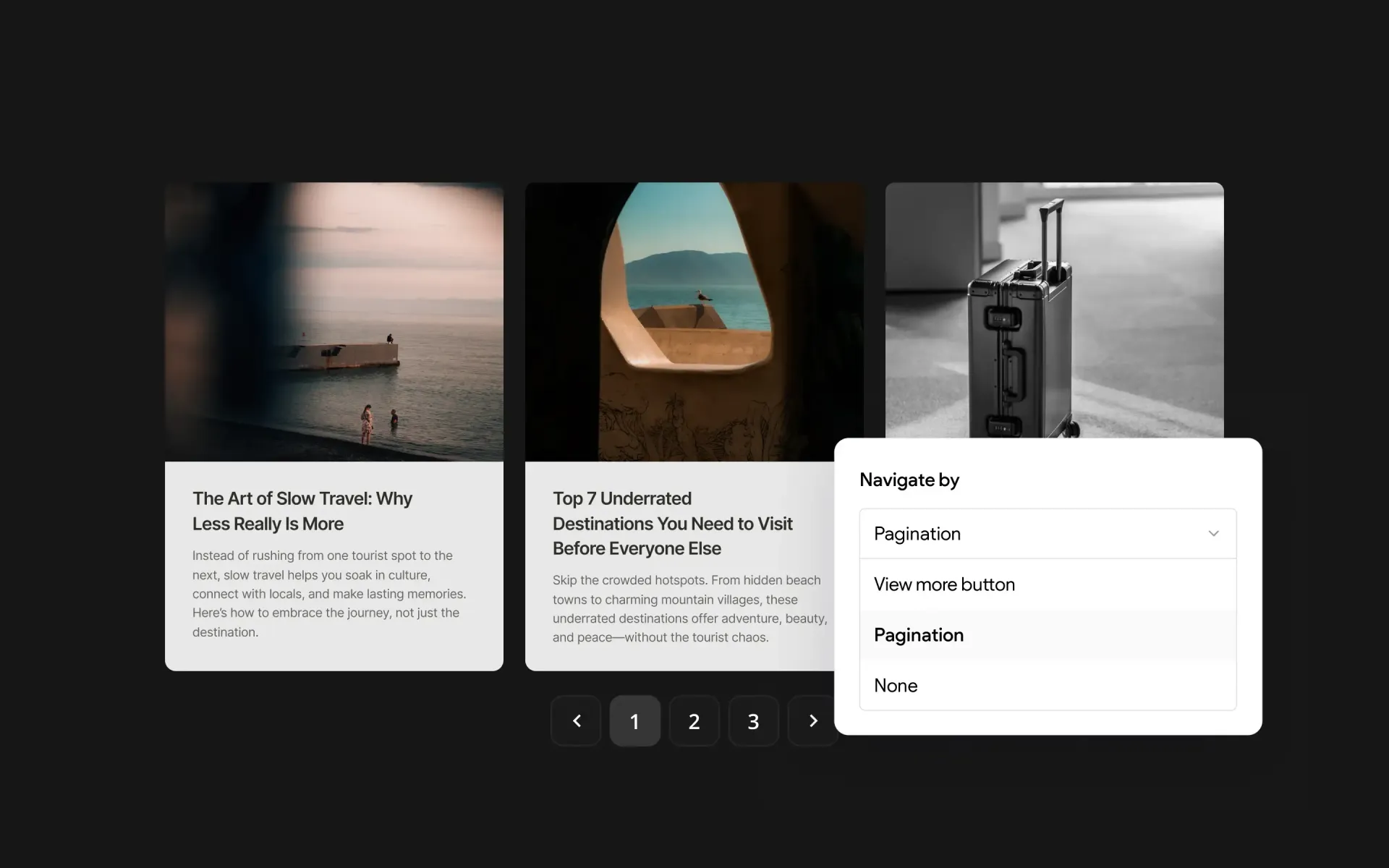
The All Posts widget now includes more options for how additional posts appear on your blog page. You can choose between several loading styles depending on how you want visitors to browse through your content.
Options now include:
- Pagination controls for navigating between pages of posts
- A Show More button that loads additional posts
- The option to disable additional loading entirely
These settings give you more flexibility when designing your blog page and help you tailor how readers explore older posts.
To Use:
Add the
All Posts widget to a page. In the widget settings, choose how additional posts load, including
pagination, a
Show More button, or
no additional loading.
Create Anchors to Link Directly to Sections Inside Blog Posts
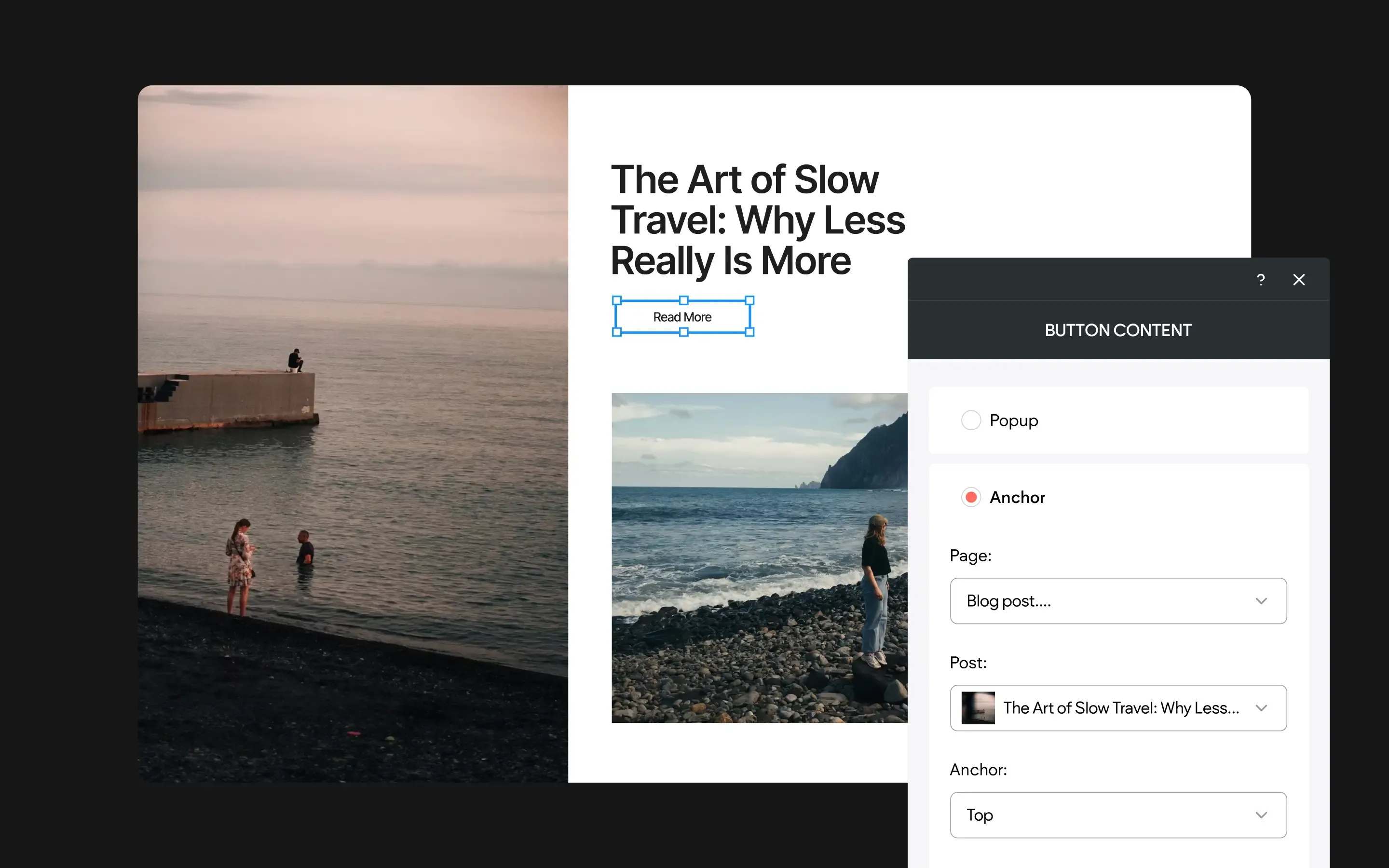
Another helpful improvement is the ability to create anchors within a blog post. Anchors allow you to jump to specific sections inside a page, and they’re commonly used in site navigation, single-page websites, and long-form content.
Instead of linking only to the top of a blog post, you can now link directly to an anchor within the article, allowing readers to jump straight to the section you want them to see.
This is especially useful for longer blog posts, tutorials, or guides where you want to reference a particular section. For example, you might link readers directly to:
- A specific step in a tutorial
- A section of a guide
- A key part of a longer article
Using anchors inside blog posts makes it easier to guide readers through your content and share the exact section you want them to see.
To Use:
Add anchors to sections within your blog post. When creating a link, select the blog post and choose the specific anchor you want to link to within that post.
More Flexibility for Your Blog
Together, these updates make the blog inside the Without Code editor more flexible and easier to manage. You can now create multiple layouts for different types of posts, duplicate layouts quickly when experimenting with designs, control how posts load on your blog page, and link directly to specific sections within your articles.
If you haven’t explored these new options yet, you can find them available now when working with blogs in the editor.
More from Without Code