New Editor Upgrades: Five Gifts You Can Unwrap Early
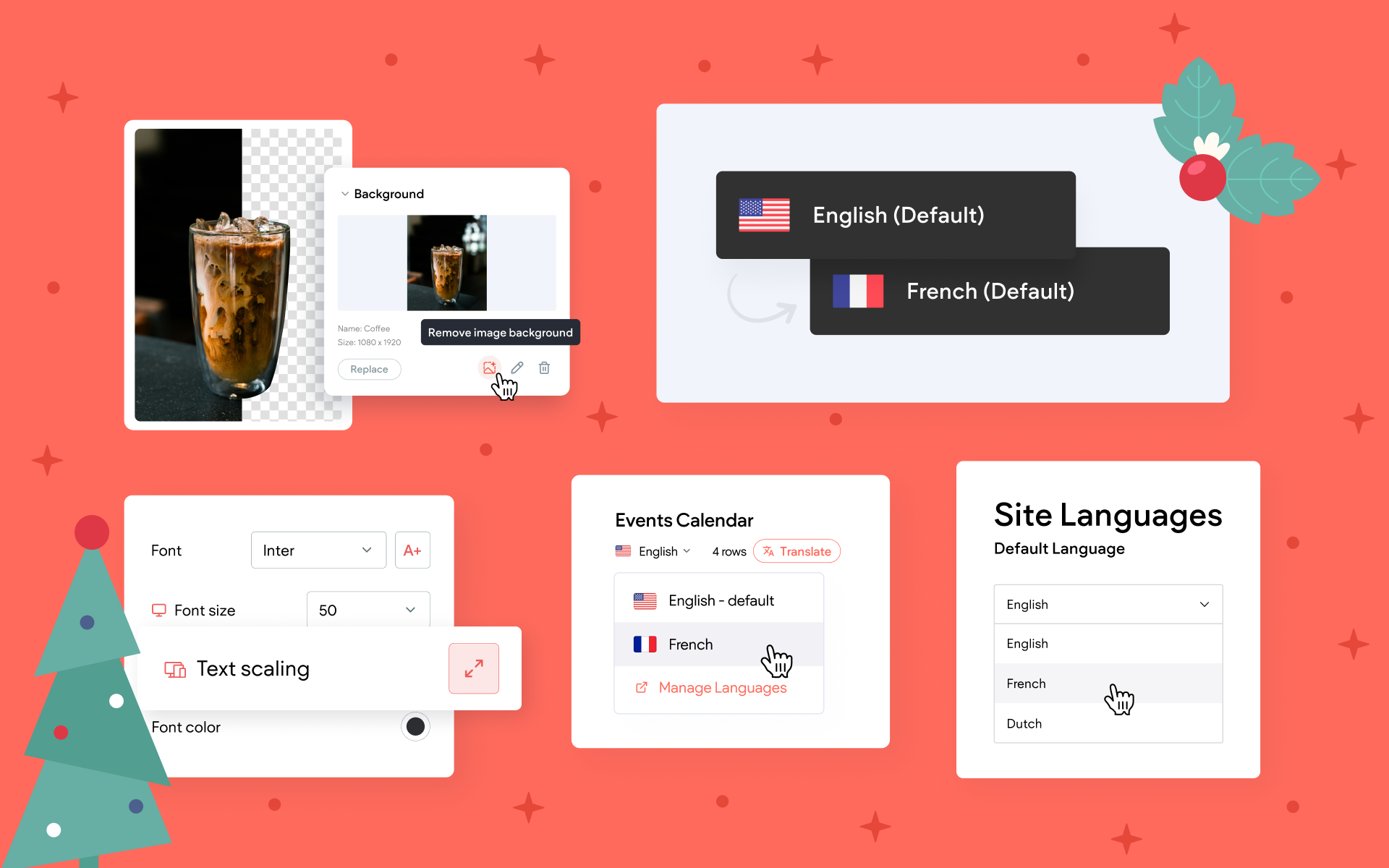
The holidays came early this year, and we’ve packed Santa’s bag with a bundle of brand-new features to make building your next website smoother, smarter, and a whole lot more fun. Whether you're adding the finishing touches to a client project or gearing up for a busy new year, these tools are designed to save time and unlock new creative possibilities inside the Wocode editor.
In true holiday spirit, each upgrade removes a bit of friction from the design process. Cleaner visuals, smarter text behavior, easier translations, more flexible language control. Everything here is aimed at helping you build with confidence and deliver more polished results in less time.
Let’s peek inside the gift bag and unwrap what’s new.
🎁 A Redesigned Sidebar Menu for a Cleaner, Smarter Workspace
A great workspace helps you move quickly and stay focused, and that’s exactly what the newly redesigned editor sidebar is built for. The updated layout keeps your most-used tools right at your fingertips, reduces visual clutter, and adapts to each site as you build.
As you add features like a store, blog, or memberships, the sidebar updates automatically so you only see what’s relevant for that particular site. This creates a more personalized editing experience and sets the stage for even more features coming soon.
Why you’ll love it
- Your most common tools are easier to reach, so building feels faster and more intuitive.
- Clear Widgets and Content entry points make it simple to add the elements you use most.
- SEO gets a renewed spotlight, with all the powerful optimization tools grouped together and easier to access — because strong search performance starts right in the editor.
- The sidebar personalizes itself based on the features your site actually uses (store, blog, membership, and more).
- A cleaner, less crowded workspace that feels tailored to each project.

How to use it
- Access your core tools – such as Widgets and Pages – in the sidebar just as you always have.
- Use the More button to customize the sidebar with additional features like Blog, Store, or Membership, which appear only when they’re added to the site.
🎁 Background Removal — Clean, Polished Cutouts in One Click
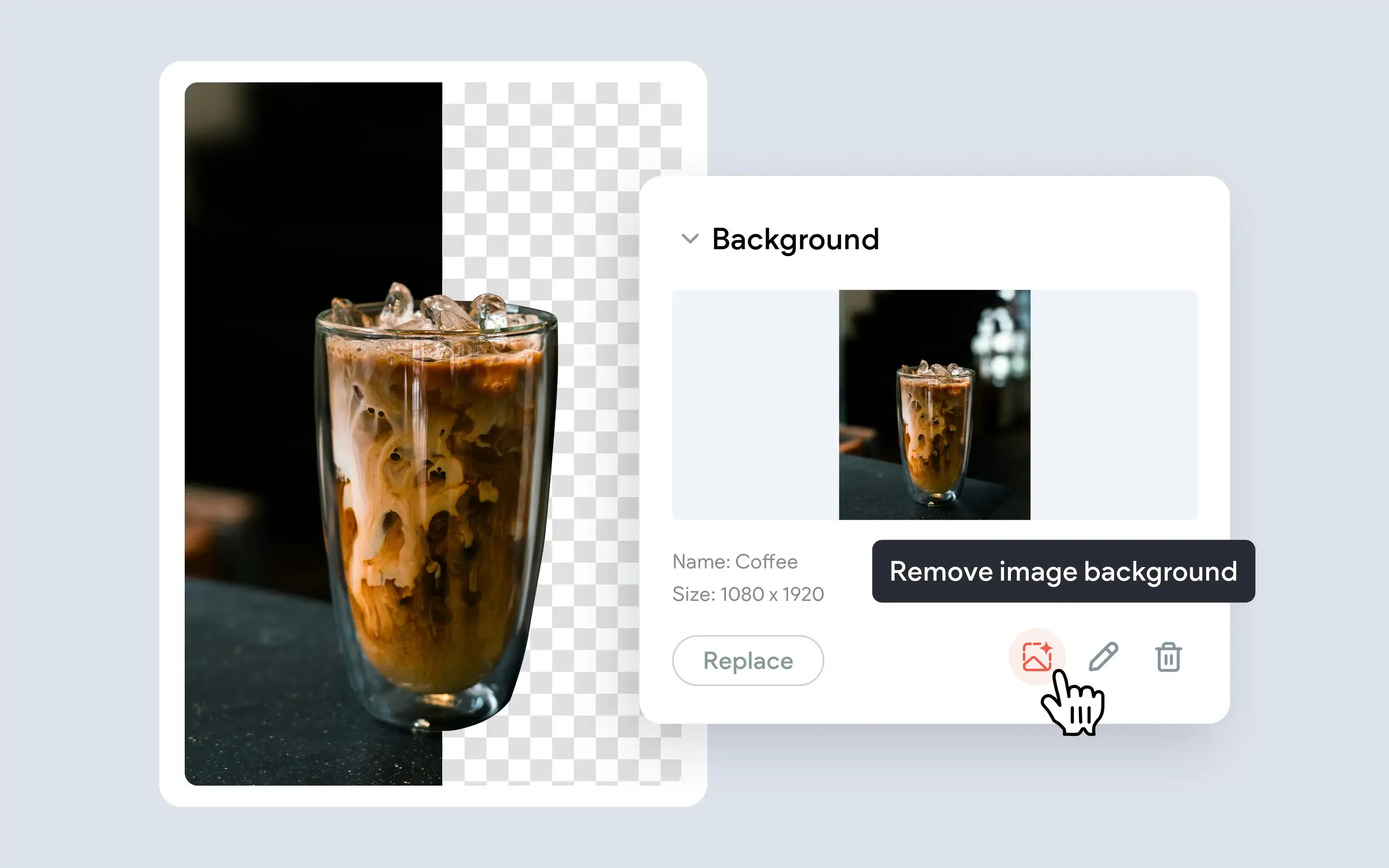
One of the most powerful ways to modernize a layout is to strip away the clutter from a photo and spotlight the subject. Now you can do this directly in the image editor without Photoshop, external apps, or repeated exporting and re-uploading.
With the new Background Removal tool, any photo can instantly become a crisp, professional cutout. This is perfect for product hero shots, team members, portfolio pieces, and even messy client-submitted images that need a little cleanup.
Why you’ll love it
- Create polished hero sections and banners without extra design tools.
- Turn everyday snapshots into clean, modern visuals.
- Swap backgrounds freely such as solid colors, gradients, patterns, or images while keeping the subject intact.
- Great for catalogs, service showcases, highlights, and any layout where clarity matters.
How to use it
- Great for catalogs, service showcases, highlights, and any layout where clarity matters.Click any image on your site to open its settings panel.
- Look for the
“Remove image background” option beneath the filename.
- Click once and the editor isolates the subject and removes the backdrop.
- Update the section behind the image to complete the new look.
🎁 Responsive Text Scaling — Typography That Adapts Automatically
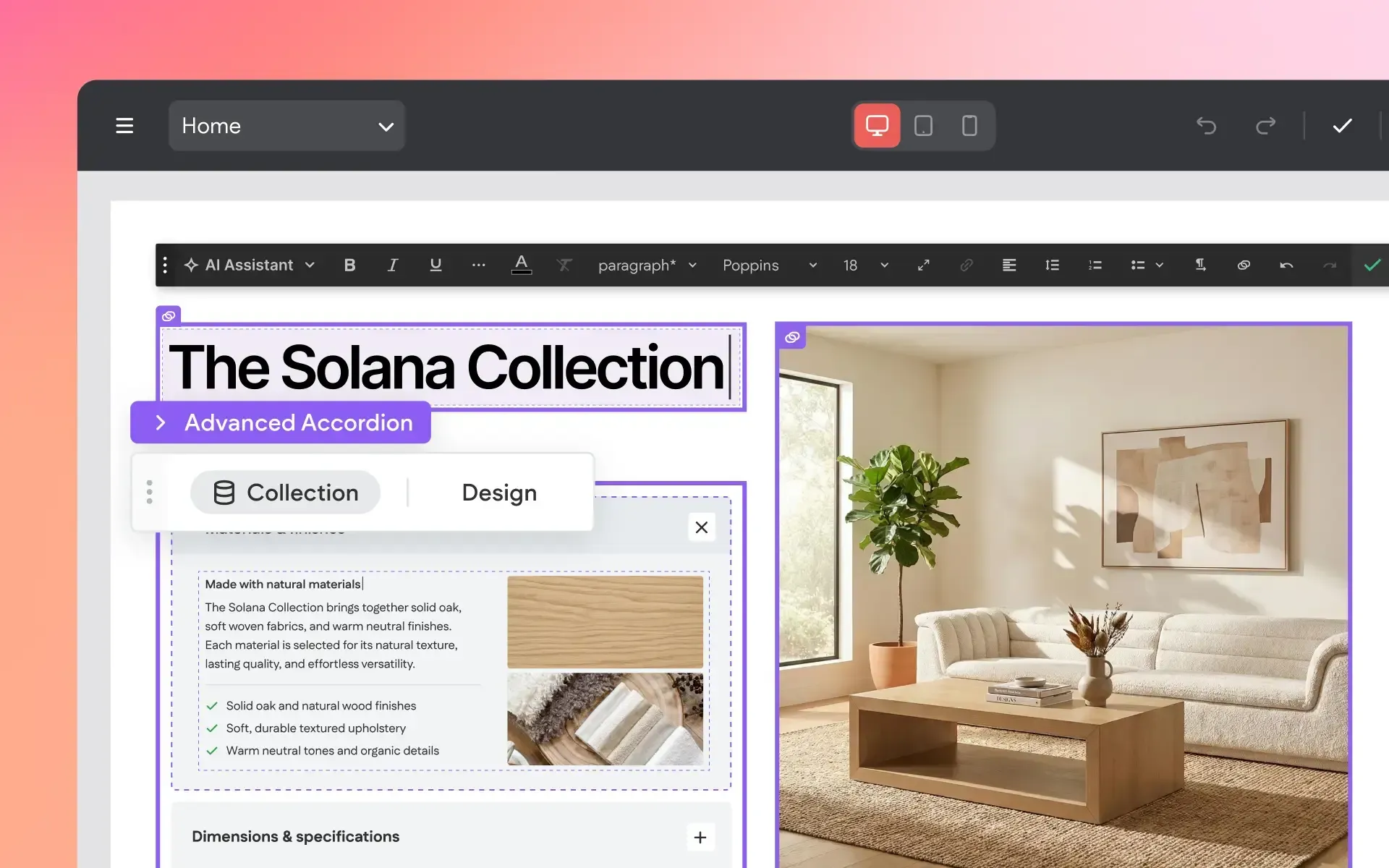
Your content looks its best when typography feels balanced across every device. Until now, that typically meant manually adjusting text sizes per breakpoint. With Responsive Text Scaling, your text automatically adjusts based on screen width. Headlines stay bold and readable, body text stays clean and comfortable, and you spend far less time tweaking settings.
Why you’ll love it
- Set your type styles once and they scale beautifully on phones, tablets, and large screens.
- Better readability and accessibility without manual adjustments.
- More consistent visual hierarchy across all device sizes.
- Great for hero text, section titles, and any copy that needs to shine.

How to use it
Site-wide:
- Head to
Site Theme → Text and enable the scaling option to make your global type styles responsive.
Per widget:
- Select a Text widget on your page and toggle the scaling setting for fine-grained control.
🎁 Translate Internal Collections — Go Global With Dynamic Pages
If your site uses Dynamic pages powered by internal collections like team members, recipes, events, business listings, job posts, or product catalogs, we’re delivering a major upgrade for multilingual sites.
You can now
translate entire internal collections at once, or translate only the rows you’ve recently updated. Everything stays synced across the languages you offer, with your primary language acting as the source of truth.
Why you’ll love it
- Manage one central database and push translations to every language automatically.
- Keep multi-language Dynamic pages consistent and up to date.
- Save huge amounts of time on recurring updates such as new items or changed descriptions.
- Perfect for growing directories, catalogs, and any high-volume content.

How to use it
- Make sure your site has multiple languages enabled in the editor.
- Open any internal collection powering Dynamic pages.
- Choose to
translate the entire collection, or select specific rows to translate only what changed.
- Review and optionally fine-tune translated values per language.
🎁 Change Your Default Language — Even After Adding Other Languages
Here’s a small but mighty power-up for multilingual sites. You can now change the site’s default language at any time, even after additional languages have already been added.
Your default language determines how content is structured, translated, and managed. Being able to switch it without rebuilding anything gives you the flexibility to adapt as your audience evolves.
Why you’ll love it
- Easily shift your primary market (for example, English-first to Spanish-first).
- Avoid rebuilding or duplicating multilingual sites just to correct a past setup choice.
- Perfect for agencies adjusting a reused site to a new client’s language needs.
- Keeps your content workflow clean and intuitive.

How to use it
- Open your site’s language settings.
- Choose which language you want to set as the new default.
- Confirm the change and the editor updates the site structure around your new primary language.
A simple change, but one that removes a huge amount of friction for multilingual projects.
Wrapping It Up
From intelligent text behavior to effortless image cleanup to smarter multilingual control, these gifts are all about helping you build faster and design with more freedom no matter what your next project looks like.
They’re available right now in your Wocode editor.
And from all of us, happy holidays and happy creating.
More from Without Code