Comparison – Webflow vs Without Code
Both Webflow and Without Code have emerged as top options for web designers. Small businesses and agencies that focus on site builds for clients will find that both of these platforms are much more suited to higher volume work than builders like Squarespace and Wix, which are geared more toward those that need a single personal site and are brand new to building websites.
Taking a deeper look into these two builders, we can leave many of the similarities behind and begin to see how the core values of two different businesses strongly affect the user experience. Without Code's name says it all – the core value of the business is focused on providing a variety of tools to a community of visual designers that prefer not to use code. Users of Adobe Muse are probably already familiar with the Without Code team, as they are the team behind MuseThemes – a very popular provider of widgets, themes and training that began in 2011.
Webflow was founded in 2013, and places its emphasis on web standards and best practices. While Webflow and Without Code both utilize web-based visual editors, Webflow takes the approach of presenting users with traditional web development building blocks such as divs and classes. Users with development knowledge or background will be more comfortable in that environment than those without.
In this article we'll look at several builder-to-builder comparisons in a number of categories, and provide a clear focus on which site builder will be right for you. Begin with the comparison overview for a summarized view, and read on for additional details in each category.
Comparison Overview
Webflow
Without Code
Site Editor
Webflow uses a visual drag-and-drop editor. However, a class and CSS attributes must be applied to each element placed (or an existing class can be applied instead).
Templates
100+ free and premium templates available. Premium templates are purchased individually, with prices ranging from $24 - $159+ each.
100+ templates are available for free.
Widgets
Pricing
Pricing plans are separated into Site Plans, Ecommerce plans, Workspace plans, and add-on plans. Site Plans range from free (restricted features) to $39/month, and Ecommerce Plans range from $29 to $212/month. An average site with CMS users and ecommerce would be $29/month.
Simple pricing built around one Standard plan at $15/month, which includes all features and ecommerce. Optional higher-tier ecommerce plans are offered for large stores.
Multilanguage Sites
Multilanguage sites are not available in any standard plan, but are available via paid add-on plans.
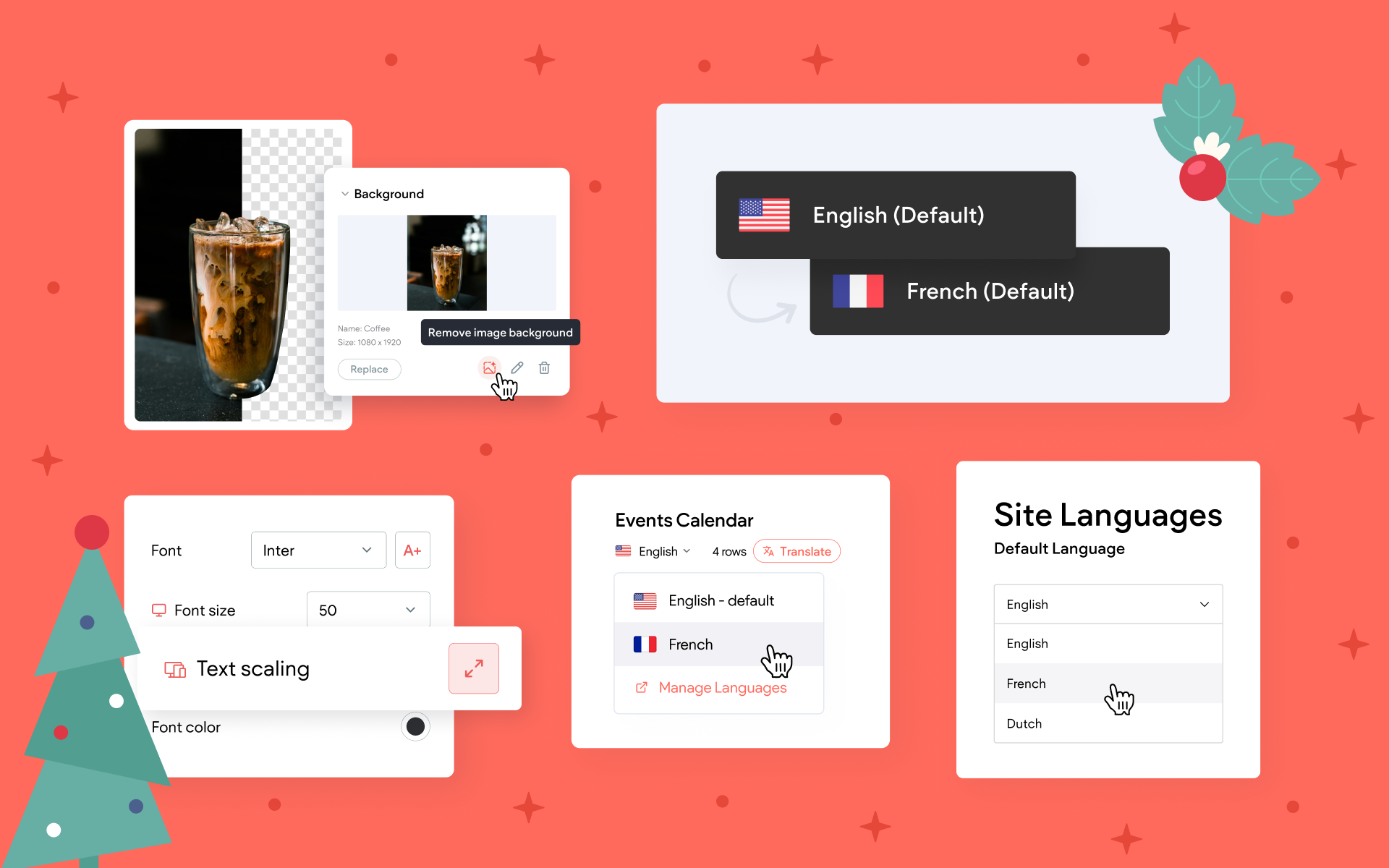
Multilanguage functionality is built into the builder natively, with automatic site translation available for 55+ languages via Google Translate.
Access to Site Code
Bandwidth Restrictions
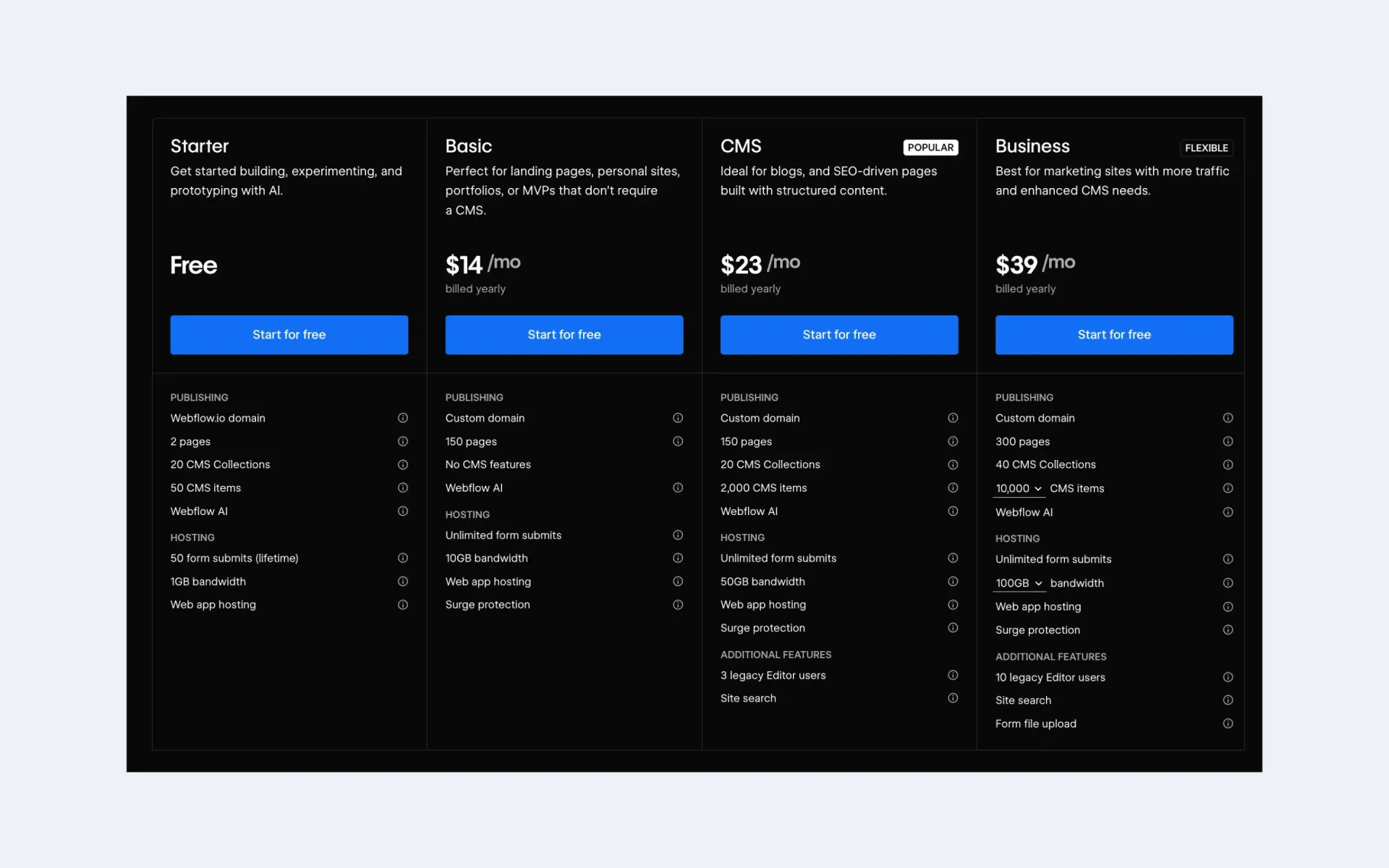
Bandwidth restrictions vary based on site plan. The Starter, Basic, CMS and Business plans allow 1gb, 10gb, 50gb, and 100gb bandwidth, respectively.
SEO
SEO tools are available for all sites, with more powerful conversion tools available as paid add-ons.
Site Backups
SSL
Site Editor
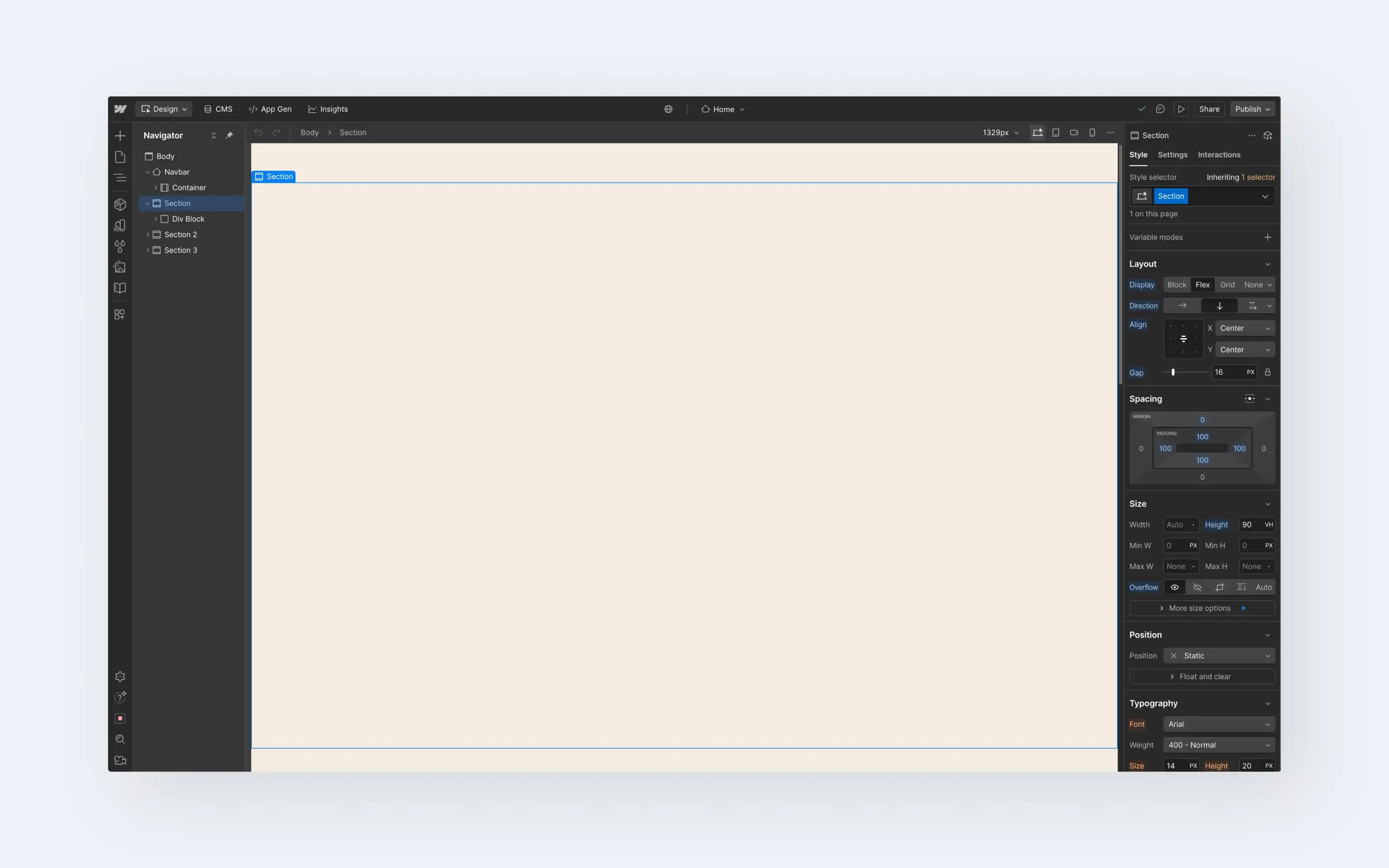
Webflow
Webflow uses a web-based editor with drag-and-drop methodology for placing elements onto a page. With a strong commitment to web standards and best practices, Webflow's editor is geared toward revealing page elements to be exactly what they are – from divs, to classes, to CSS. As you place an element onto a page, you assign a class and CSS properties.
Actions in the editor are typically more manual, meaning that if your intention is to style some text or an image, you will do this by making individual adjustments to the CSS. Many settings you make (such as CSS settings) are 1:1 with how the site code is generated.
Without Code
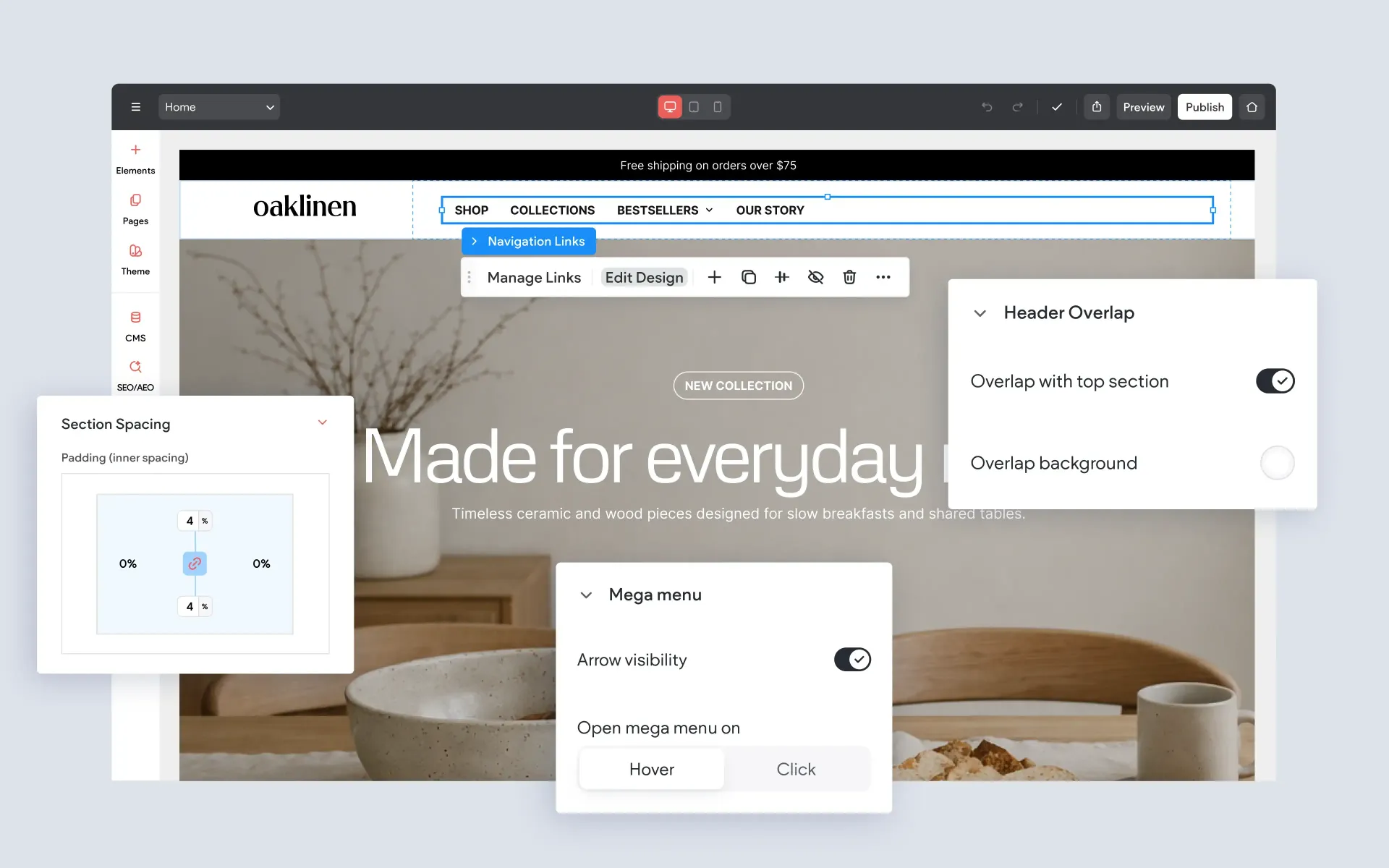
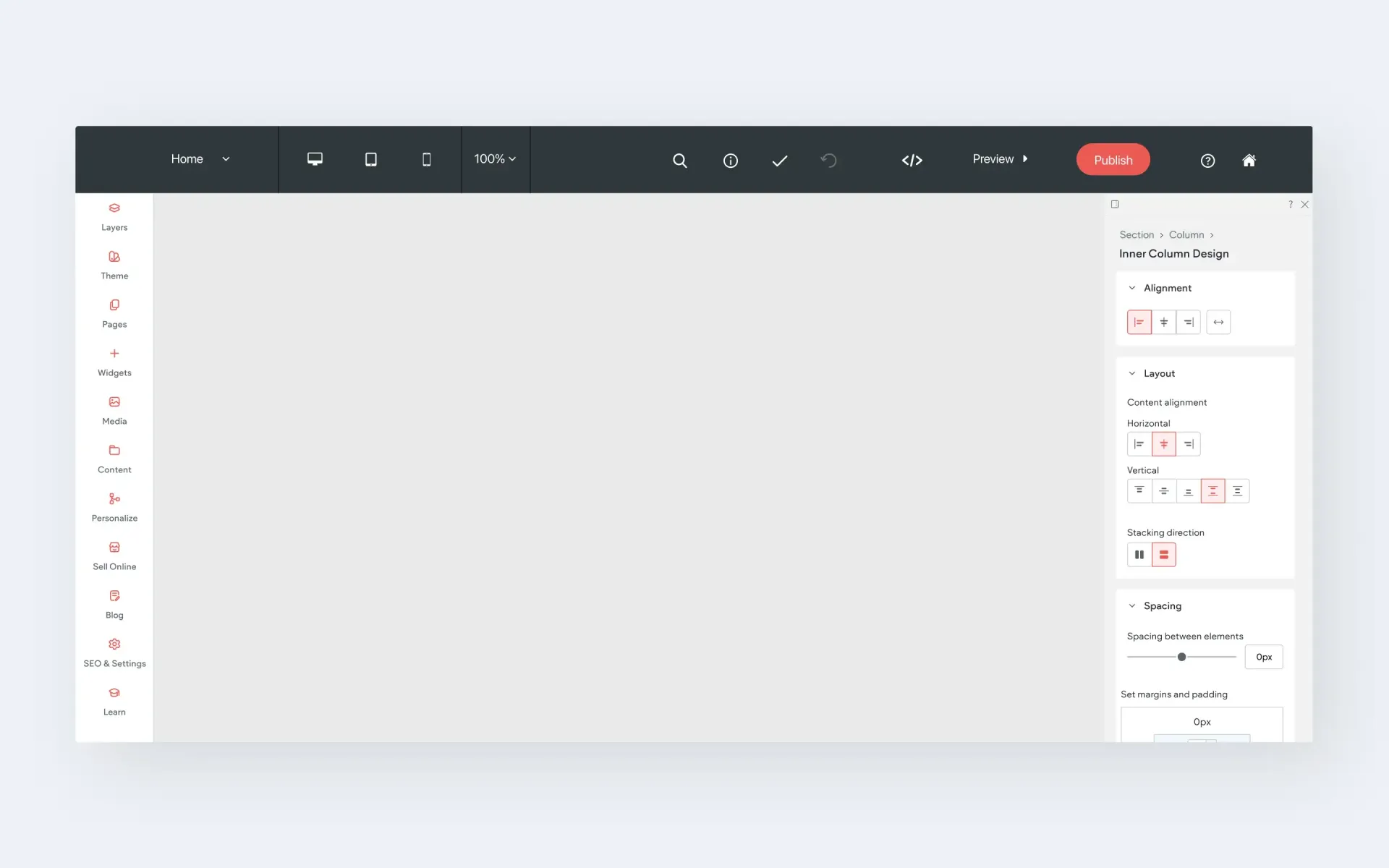
Without Code also uses a web-based drag-and-drop editor. The visual nature of the allows the designer to get an immediate sense for the look of a site as it comes together because what you see in the editor represents what you see on the published site.
All the components of a website – such as headlines, text, images, videos, etc.
–
are accessed from a sidebar menu as widgets. These widgets are dropped into place and updated via a widget option panel. Elements on a page can be moved, copied and re-arranged. This style of editor is very easy to learn and will be familiar to anyone that has used a newsletter builder, PowerPoint, Keynote, or other drag-and-drop editors.
Summary:
The differences in the editor may be the most vital component in the comparison between these two builders, as these each will likely appeal to different types of designers.
For those seeking to build a site in a highly visual way, Without Code is the clear choice. Elements can be placed and adjusted quickly, and any element you see in the editor will always represent the way that element will look on the finished site. Things like classes and CSS are handled by the builder behind the scenes. This is an important thing to point out, as this is a clear difference from Webflow. Each time you add an element in Webflow, you must address the class and CSS of that element. Having this handled behind the scenes by Without Code allows designers to work very quickly, and stay completely in a visual design world. It should be noted that you can indeed access classes and CSS in the Without Code builder if you like, but it is certainly not a necessity (we'll discuss Without Code's Developer Mode in the Access to Code section below).
If you have a web development background or have an intermediate to advanced understanding of HTML, then you may appreciate Webflow's dedication to making things like CSS a manual process, rather than something that's automatically handled. If you're not sure what a div is, or what classes do, then Webflow will have a pretty steep learning curve.
Put simply, visual designers that want to work quickly will find Without Code a delight to work in. But if you're interested in working in a hybrid designer/developer environment, Webflow may be just what you're after.
Templates
Webflow
Webflow has hundreds of free and premium templates, with template access available to all account plan levels. Premium templates range in price from $24 to $159+.
Without Code
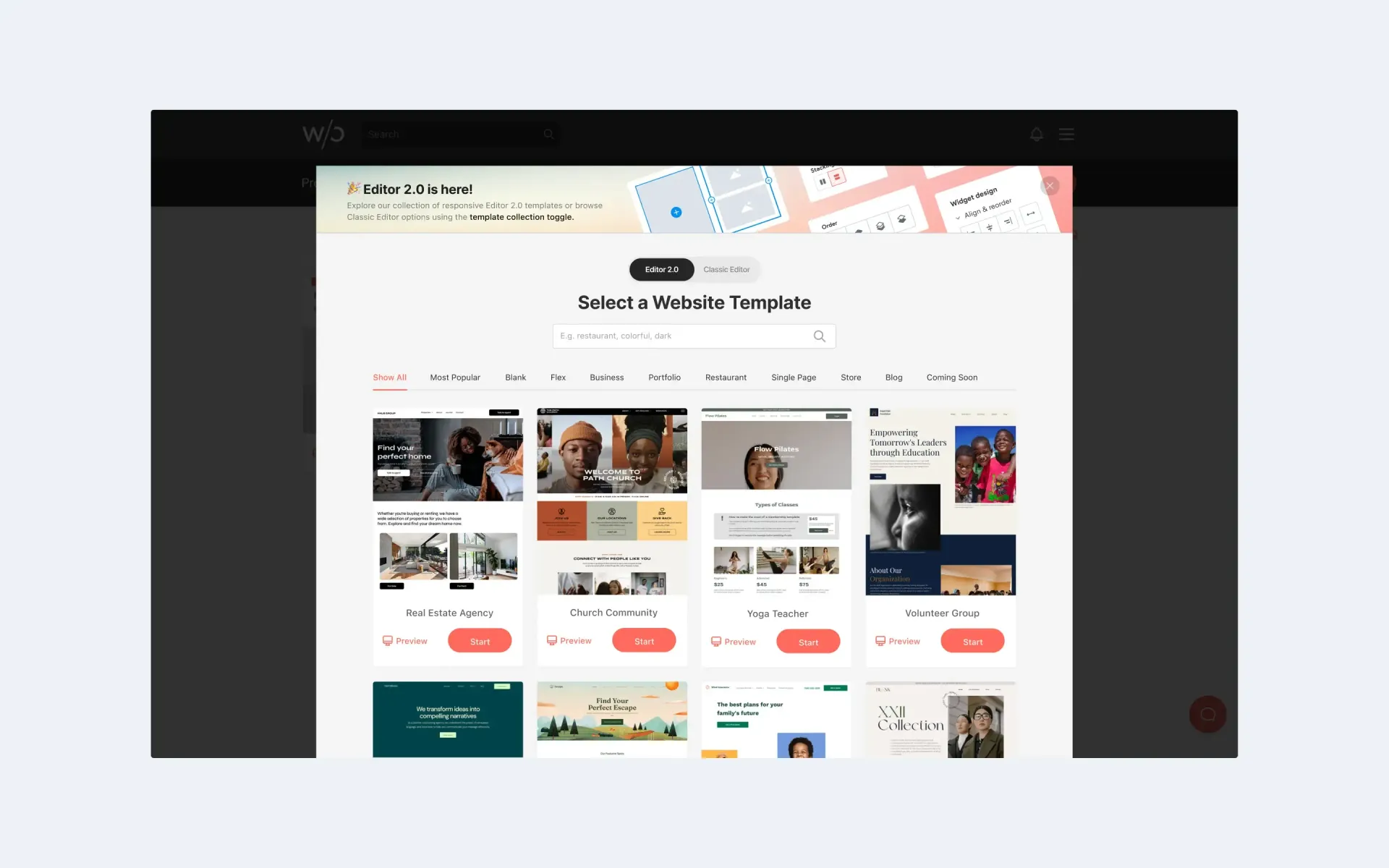
Without Code has 100+ templates, all free.
Summary:
Both platforms offer 100+ templates. However, only Webflow charges per template for premium selections. For those that build sites routinely, Without Code will offer a more cost-effective route with unlimited access to all templates.
Widgets
Webflow
Webflow does not offer support for drag-and-drop widgets. While core elements such as text, buttons and forms can be added to a page by dragging and dropping, third party widgets such as galleries, Facebook feeds, or feature integrations are a whole other matter.
Before a widget can be used in Webflow, it must be configured outside of Webflow's editor. This is usually done on a configuration interface of the widget creator's website. To use a widget, you would visit the site of a widget maker – such as Elfsight or Udesly – then configure the widget options and copy the resulting HTML code. The resulting HTML code is pasted into the Embed element in the Webflow editor.
When widgets are used in Webflow, they will not be rendered in the editor. To see your widget, you will need to publish the site.
Without Code
Widgets are an essential part of the Without Code experience. As you build a site, you do so by placing widgets into your page layout. Widgets consist of everything from basic building blocks like text and images to video galleries and third-party integrations. All widget settings are adjusted in a widget settings panel within the site editor.
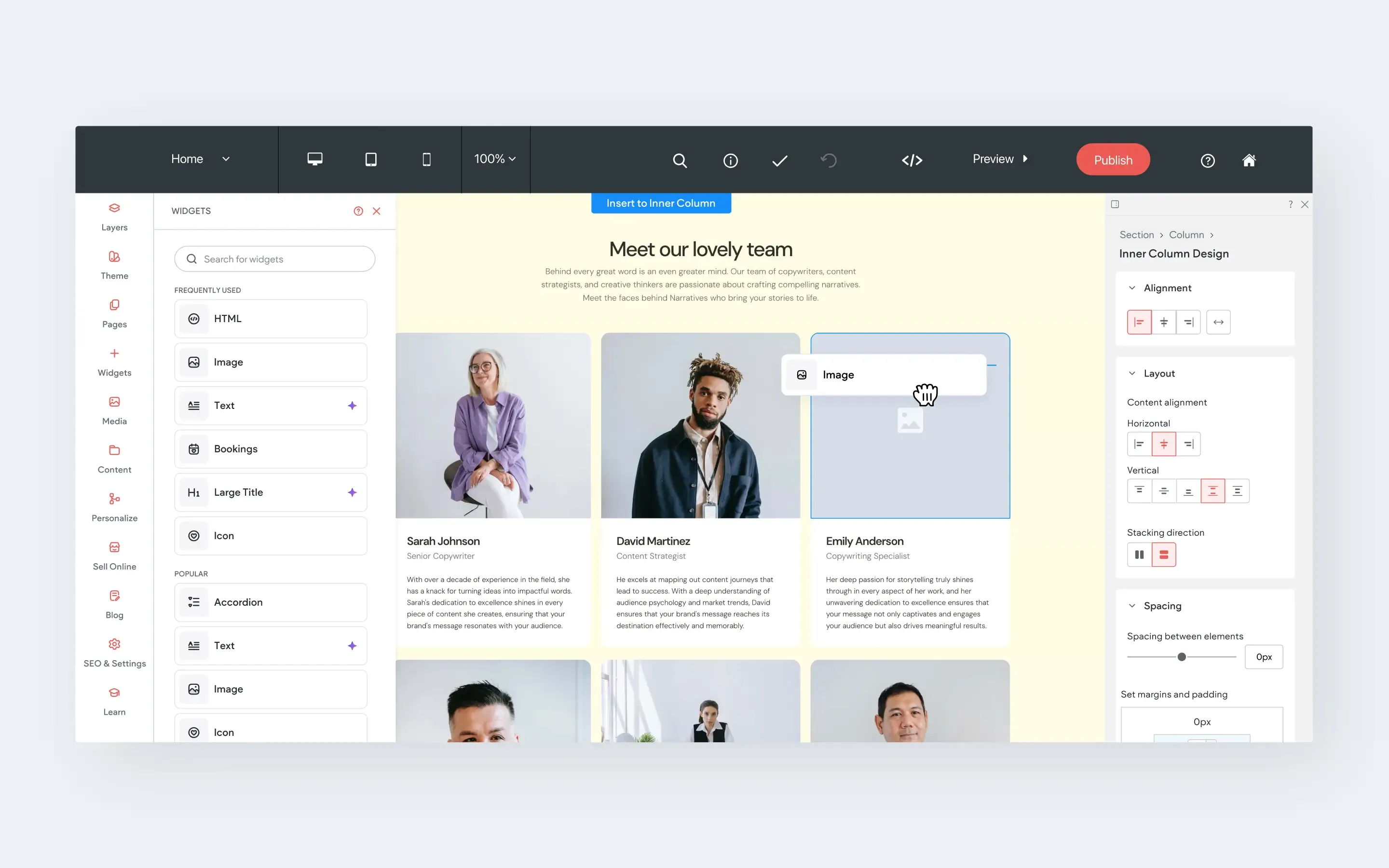
Summary: Without Code has a huge workflow advantage when it comes to adding and adjusting widgets.
While both site editors are built upon the drag-and-drop concept, only Without Code maintains the process universally. The ability to stay in a singular workflow creates a huge advantage when building sites. The process of adding a widget is always the same, whether it be text or a Calendly integration.
In contrast, adding widgets in Webflow is a bit scattered and complicated. Each time you want to add a widget, you will need to consider whether the functionality can be achieved using a basic Webflow element (like text or a button), or whether you will need to use a third party service for something like a slider or social feed. These two routes require different setups, with the latter requiring you to configure your widget on a third party website.
It's also important to emphasize that when using Webflow's Embed element required for using third party widgets, you will not see the widget rendered in the site editor (as you would with standard Webflow elements, such as images). This means that in order to see things like galleries and sliders, you will need to wait to see the rendered element when the site is published. And when changes are needed in the widget settings, you will need to return to the third party site, make the changes, copy the code again, paste the code into the Webflow element, and republish the site.
Pricing
Webflow
Webflow has several types of plans, including Site Plans, Ecommerce Plans, Workspace Plans, and Add-ons.
Site Plans are geared toward those seeking basic personal sites that don't require a store or ecommerce. These plans range from free to $39/month. The free plan has restricted bandwidth and is limited to 2 pages. If you need a CMS or client access, you will need to go with the CMS Plan at $23/month.
Ecommerce Plans are available for $29, $74, and $212/month depending on the number of ecommerce items you need.
Agencies or those working with multiple clients should look at the Workspace Plans, which include staging sites and collaboration seats. When you sign up for Webflow, you get the Free-level Workspace Plan included by default. Scaling up to additional features is available with the Core and Growth plans, at $19 and $49/month, respectively. Note that these costs are in addition to the Site or Ecommerce plans listed above.
Add-ons are available if you want to include conversion optimization, analytics, and localization. These add-ons range from $9-$299/month and are in addition to the costs above.
Overall, the pricing structure is focused on your needs, and whether you're operating as an agency or just building a small site for yourself. A comparable site plan to the Without Code Standard plan would be the CMS Plan at $23/month. But this would not include ecommerce, analytics, or white label.
You can see Webflow pricing here.
* All pricing listed in this article represents the cost when paid annually.
Without Code
Without Code offers very simple pricing, with a single Standard plan that includes all available features for $15/month. This all-inclusive approach means there are no tiers to sort through unless you need a store with a larger product catalog. Users with bigger stores can choose from ecommerce-focused plans at $20 or $35/month, which support product catalogs beyond the 10-product store included in the Standard plan.
You can see Without Code pricing here.
* All pricing listed in this article represents the cost when paid annually.
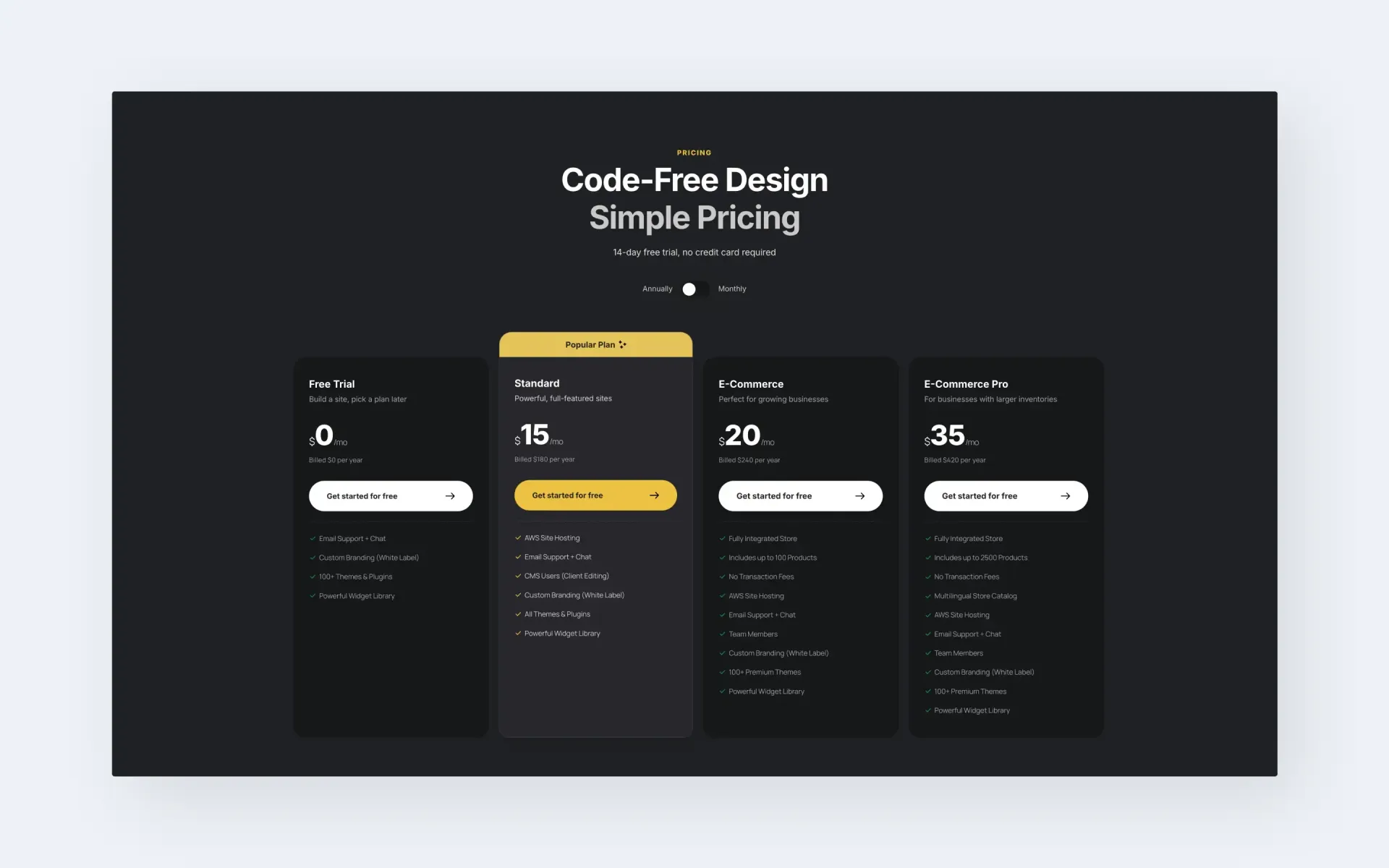
Summary: Without Code is the cheaper option with much simpler, all-inclusive pricing.
If we take a look at an example of someone who has published a site with ecommerce, CMS access, analytics, multilingual layouts, and without traffic restrictions, that site would cost $15/month on Without Code. The same site would cost $47/month on Webflow ($29/Ecommerce Plan, plus their "Analyze" add-on at $9/month, and "Localization Essential" add-on at $9/month).
Multi-language Sites
Webflow
Multi-language sites are available at an additional cost via the "Localization" add-ons.
Without Code
Summary:
Only Without Code offers this function natively without the need for additional coding or scripts.
Access to Code
Webflow
Without Code
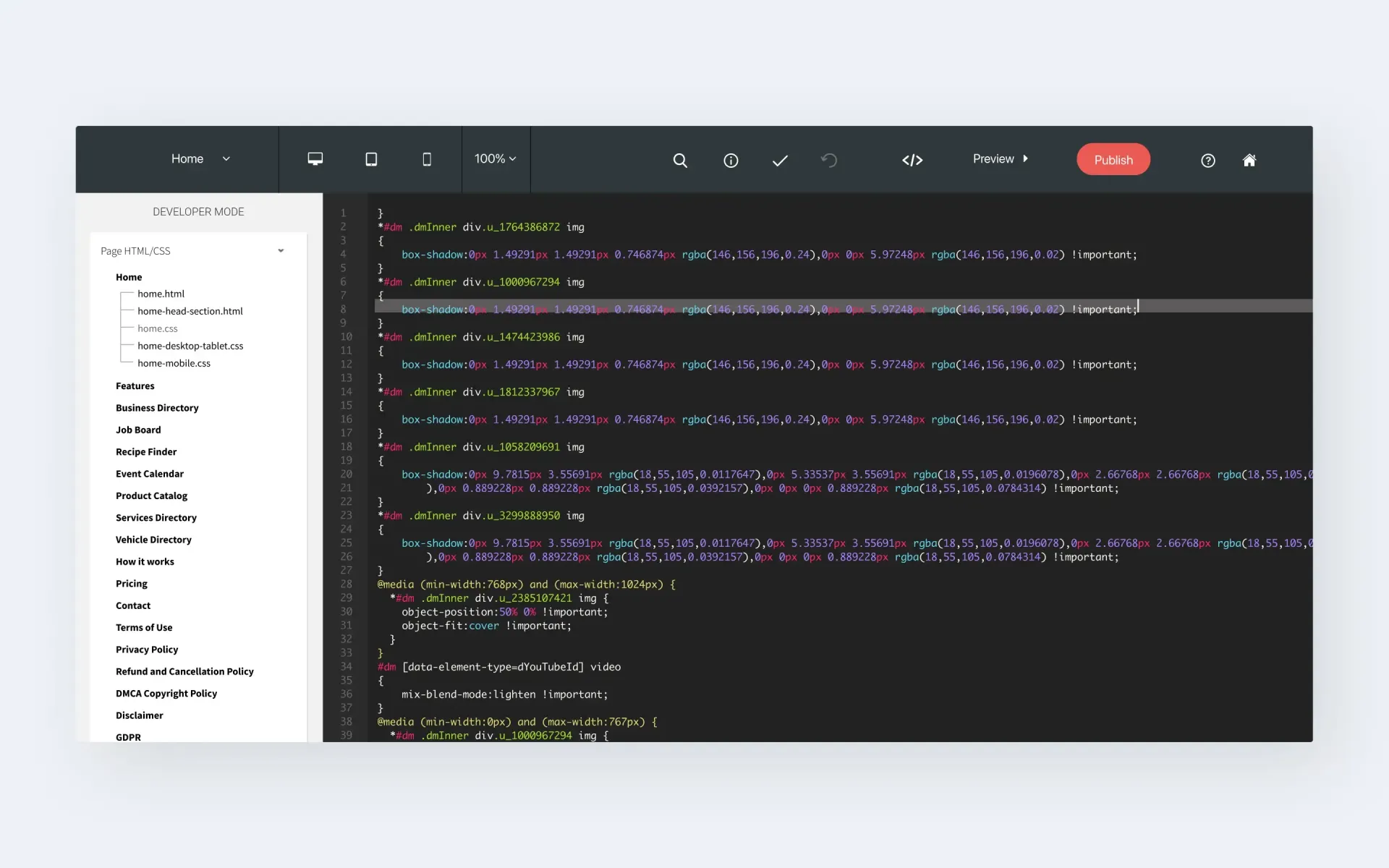
Summary:
Access to site code beyond the <head> area is only possible in Without Code.
Bandwidth Restrictions
Webflow
Bandwidth restrictions vary based on site plan. The Starter, Basic, CMS, and Business plans allow 1gb, 10gb, 50gb, and 100gb bandwidth, respectively.
Without Code
Summary:
Bandwidth should not be a concern for users of either platform. However, Webflow users may need to upgrade their site plan based on monthly visits.
Conclusion
You may be wondering, what about SEO, security, site backups and SSL? Since we've focused on the differences between these two, we should also mention that there are several things in common. Both builders offer powerful SEO features and site backups; both builders offer one-click SSL certificates natively; and both builders use Amazon Web Services (AWS) for highly-secure hosting and solid reliability.
Additionally, both companies believe strongly in teaching users how to succeed on their platforms. Extensive video tutorials and documentation are available at webflow.com and wocode.com.
With so much in common, we can put a clearer focus on the things that set these builders apart and break things down into three categories: workflow, pricing, and target audience .
Workflow in Without Code is highly streamlined. As mentioned in the Site Editor and Widgets sections above, Without Code's builder is highly intuitive for visual designers. Widgets are used throughout the site build, being dragged from a side panel and dropped on the page exactly where you want them. Page layout is always what-you-see-is-what-you-get (WYSIWYG).
Webflow begins with the same drag-and-drop concept, though there is a very real friction point: only basic elements are available in the sidebar elements menu. When you need to place elements on your site that don't appear in the sidebar menu – like galleries, integrations and social embeds – you must copy/paste third party code in these cases. Configuration of widgets is done outside of Webflow, as are any changes made in the future. And to complicate matters further, you won't see your HTML widget rendered in the builder (you'll need to publish for that).
All in all, Without Code offers a builder that is simply quicker to use, with a workflow that won't require you to leave the builder.
Pricing clearly favors Without Code. While both companies offer similar structure with separate site and account plans, Without Code offers simpler choices. Every site costs the same amount ($15/month), regardless of traffic, number of editors, or page count. And that price happens to be less than any comparable site plan from Webflow.
Finally, taking a look at target audience, we find that both platforms are well suited for agencies and freelancers building client sites. However, it is important to point out that these two builders are built with different users in mind. Webflow keeps things like divs, classes and CSS in plain view, and forces you to address these throughout your site build. This is great for those that want to think about them. Put simply, Webflow is better suited to those with some web developer knowledge.
On the other hand, Without Code offers a very visual design experience. Things like CSS and classes are handled behind the scenes, allowing users to build sites without worrying about these things. Without Code's target audience is made up of pure designers that want to work in a visual environment. Ironically, for moments when a user actually does want to access the site code for changes, Without Code is the only builder of the two that offers code access via Developer Mode.
We hope this article has helped you understand the similarities and differences in these two builders. Both platforms have had solid growth and have established themselves as excellent options for designers. The final step is to decide which platform fits your desired workflow and experience level.
More from Without Code